
Introducing FlairBuilder!
Meet the All New UI Builder for Building Responsive Websites!
FlairBuilder is a lightweight and simple wireframing tool that lets you create interactive wireframes for websites. It's clean and easy to use, and comes with a lot of features.
FlariBuilder is currently under development, but you can join our waiting listing to get notified when we release it.
About Us
 At Fantastech, we're a WordPress development agency that specializes in conversion of designs in Adobe XD, Figma, Sketch, PSD, HTML and other formats to exceptional WordPress website code.
After working with these tools for years and helping our clients with WordPress conversion, we envisioned a tool that would not only make it easy for designers to make wireframes but would be integrated with WordPress in such a way that the whole design to code conversion process becomes a breeze.
The web app is still under development and we currently do not have TAT on when the app will be completed because we're too occupied with our WordPress agency work.
But do make sure to check out this page in future.
And while you're here, you might like to checkout the services we provide for website designer. Being a designer you might already be using one of the other design tools and might need help converting those website designs into WordPress. In case you do, you can checkout our services:
To learn more about FlairBuilder and the features that we've planned for it, read on...
With FlairBuilder you can...
What you can do with FlairBuilder
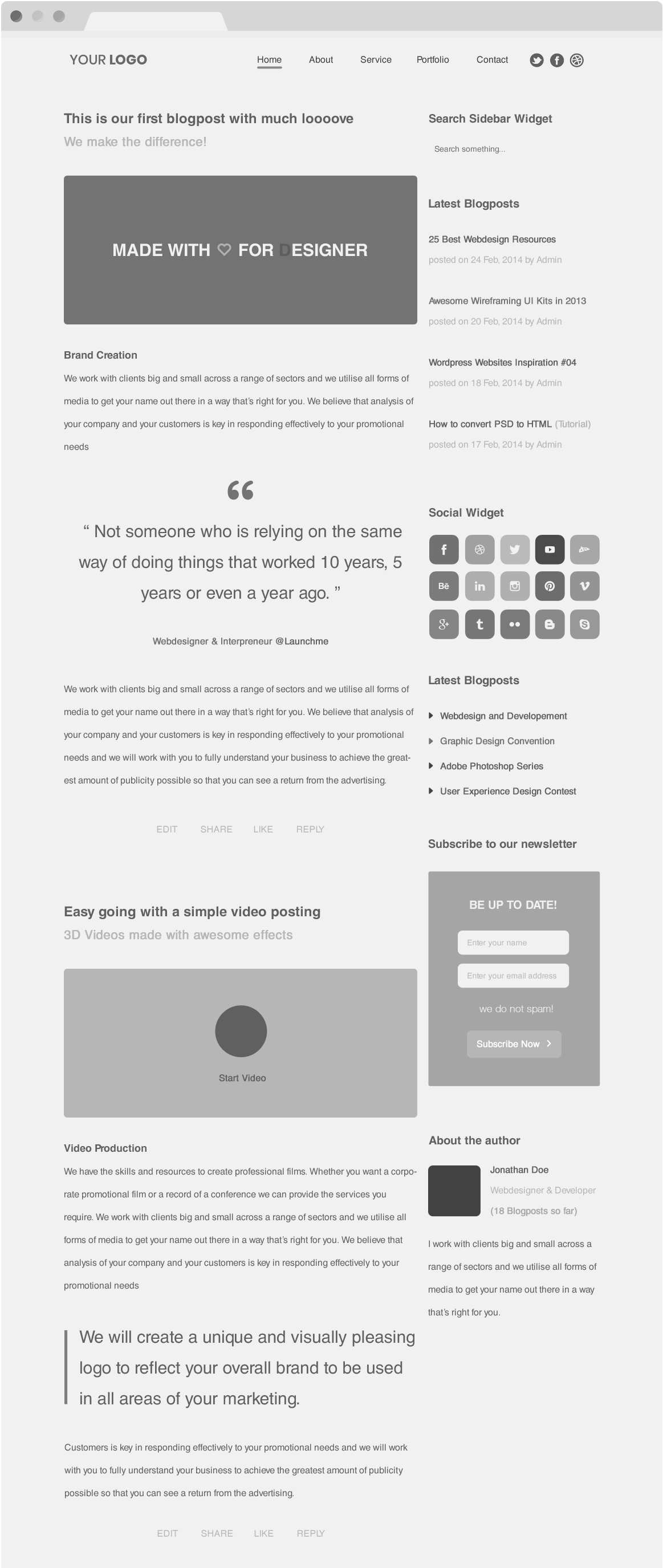
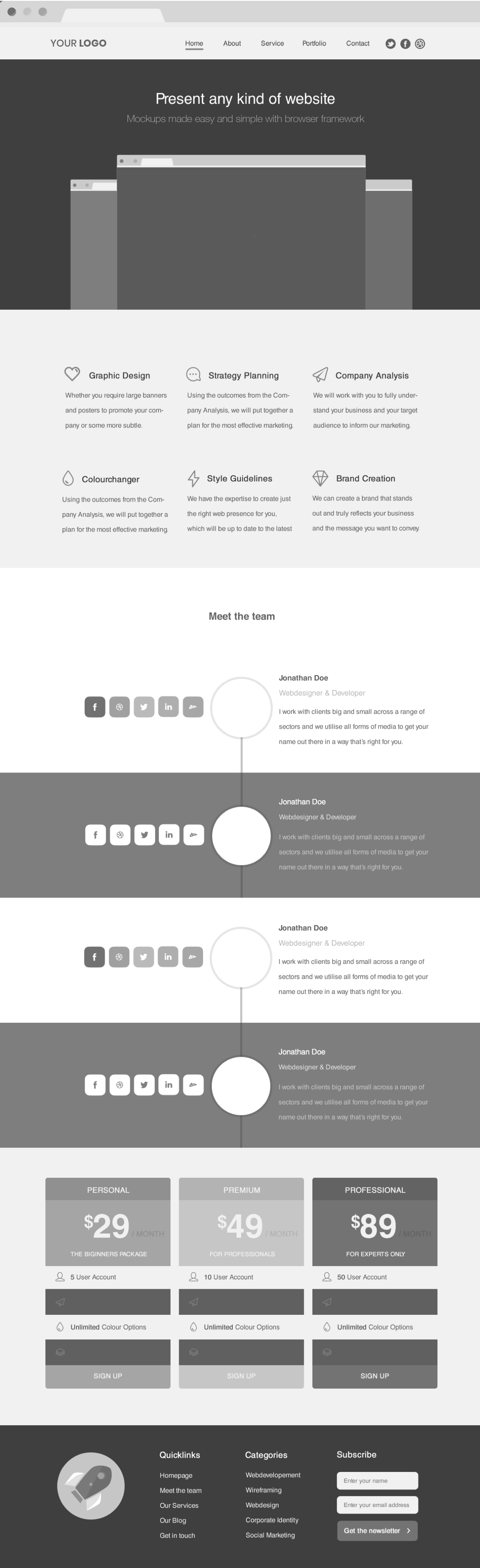
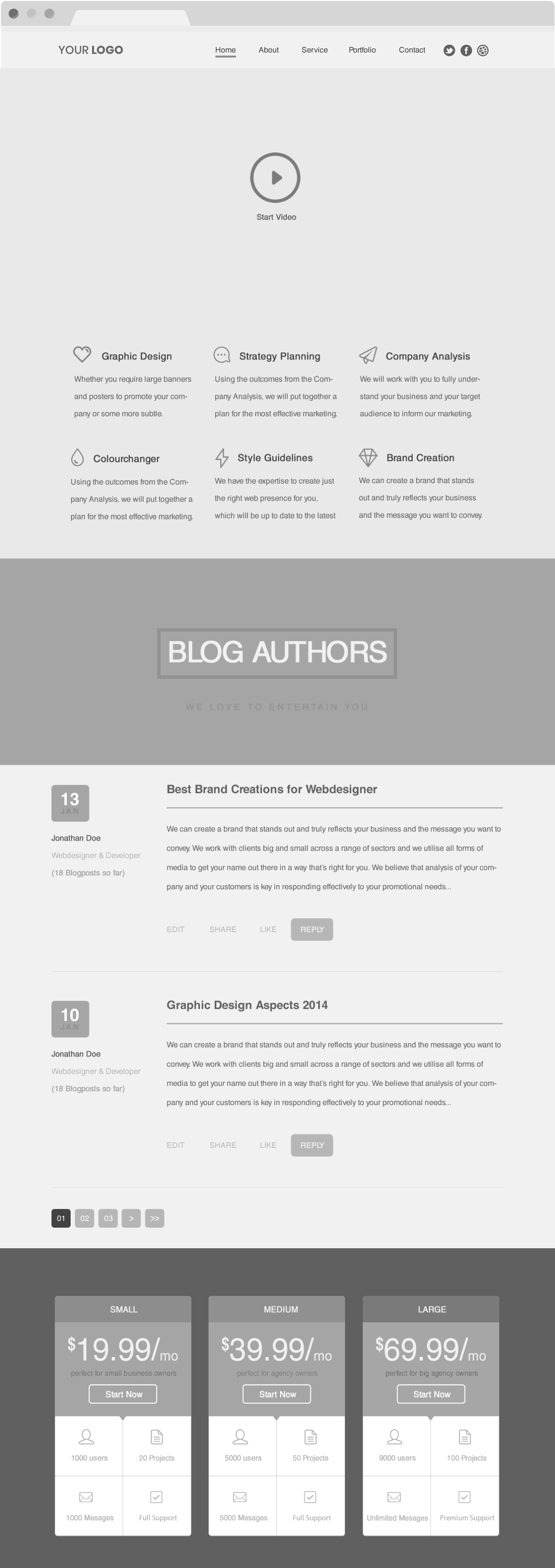
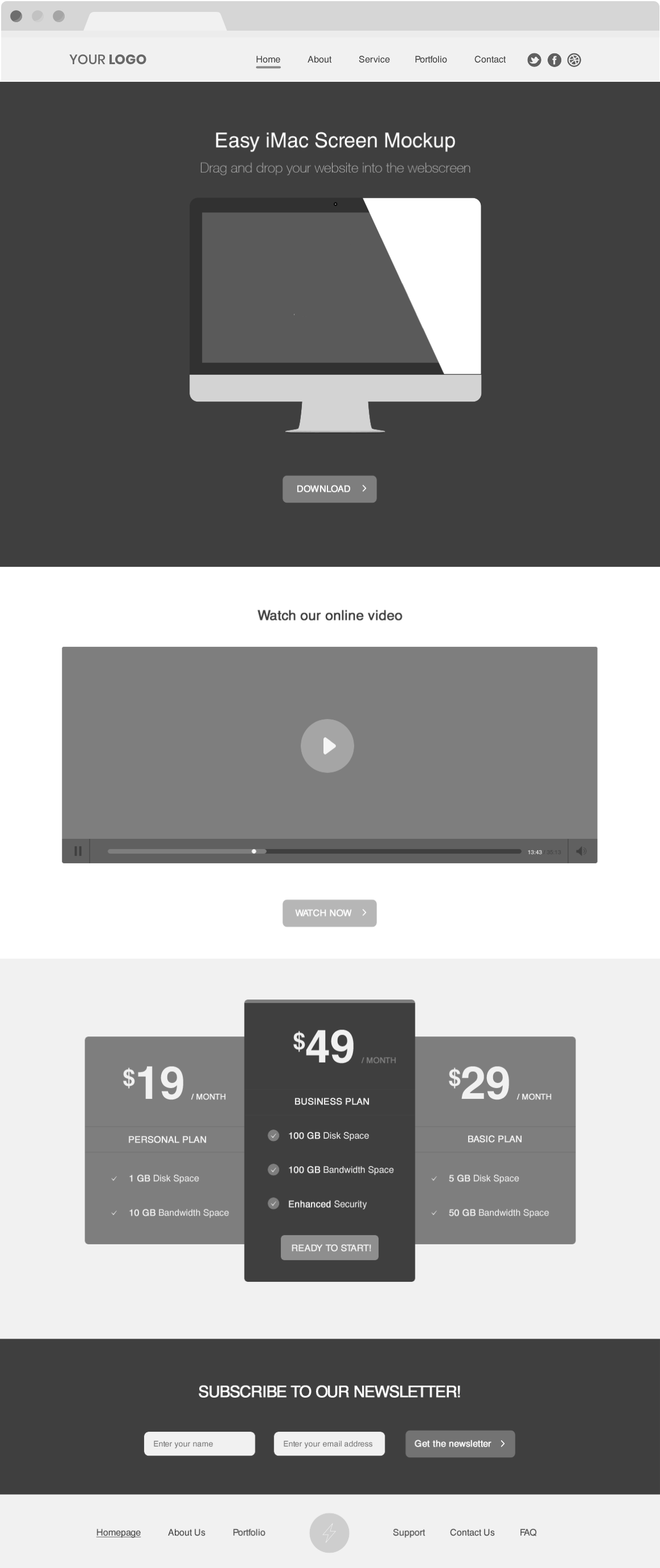
Website Prototyping
Create website prototypes for all device screens.
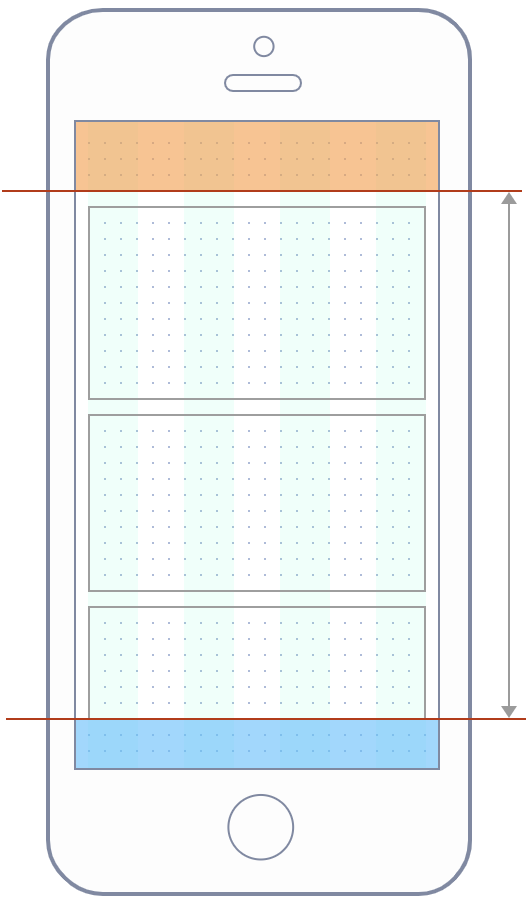
Best Tools for Beautiful Wireframes
A whole suite of design tools let you create stunning design from day one.
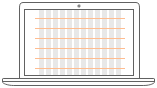
Elegant design with CSS grids
Grids have been used in design for centuries. Give your wireframes a healthy boost with an elegant layout structure and rythm.
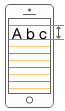
Expert typography
Good typography makes 90% of a beautiful design. Set specific font size and line height for each breakpoint for a consistent vertical rythm.

Behaviors and animations
A rich set of built-in behaviors and animations let you craft impressive interactive wireframes. Good UX is where experiment is always possible.
Feature Packed to the Bones
The bits that make FlairBuilder complete.
Master pages and layers
Reusing cross-page elements like navigation, menus, and what not is a no brainer. Save precious time and get fast feedback from clients.
Reusable symbols
Symbols let you create reusable components which you can place anywhere in your mockups. More freedom and room to experiment.
Export the PNG/HTML
When the free online viewer is not an option, export your mockup designs to offline HTML. Or just export PNG images for your deliverables.
Copy/paste
Duplicating content can also save time so you don't need to rebuild similiar components over and over again. Or just copy component attributes (soon).
Unlimited undo & redo
Exploring various design options is great, especially when you know there's always a way back. Feel free to experiment and explore.
Short cut keys
From standard designer tools shortcut keys to more specific ones, you can find your way around the app with your keyboard hand.
Rich icon set
An image is worth a 1000 words. It's a cliche, but it's also true. With 700+ icons to choose from, you can't miss. Webfonts to the rescue!
Embed your own images
Last, but not least, use your own imagery for that extra drop of realism for your designs. Just make sure they're in retro black&white for the cool.
Start Wireframing Awesome Websites!
Our tool is under development and we'll be launching to the world soon. Join our invitation list to get notified when we launch!
Copyright © 2024 Fantastech Solutions • Privacy Policy